EPUBs and my Kindle Paperwhite
- 6 minsEarlier this year, I got a Kindle Paperwhite in an attempt to use my phone less, and to revisit reading books. I have been loving it so far. I manage my books using Calibre, which auto converts formats to AZW3 for Kindle. Kindles don’t support EPUB files natively, so they need to be converted to AZW3 or MOBI format. When using the send to Kindle email service, Amazon will automatically convert EPUB files to a compatible format.
KOReader on Jailbroken Kindle
Recently, a jailbreak for the latest version of Kindle firmware was released, which I decided to try out. One of the perks of jailbreaking a Kindle is that you can install KOReader, an open-source eBook reader that supports a wide range of formats, including EPUB, as well as CBZ, which is useful for reading comics and manga.
KOReader has lots of customization options, and I have been enjoying reading EPUB files on my Kindle with it. Specifically, the margins can be adjusted to make better use of the screen, as well as richer data about the book being read.
For example,
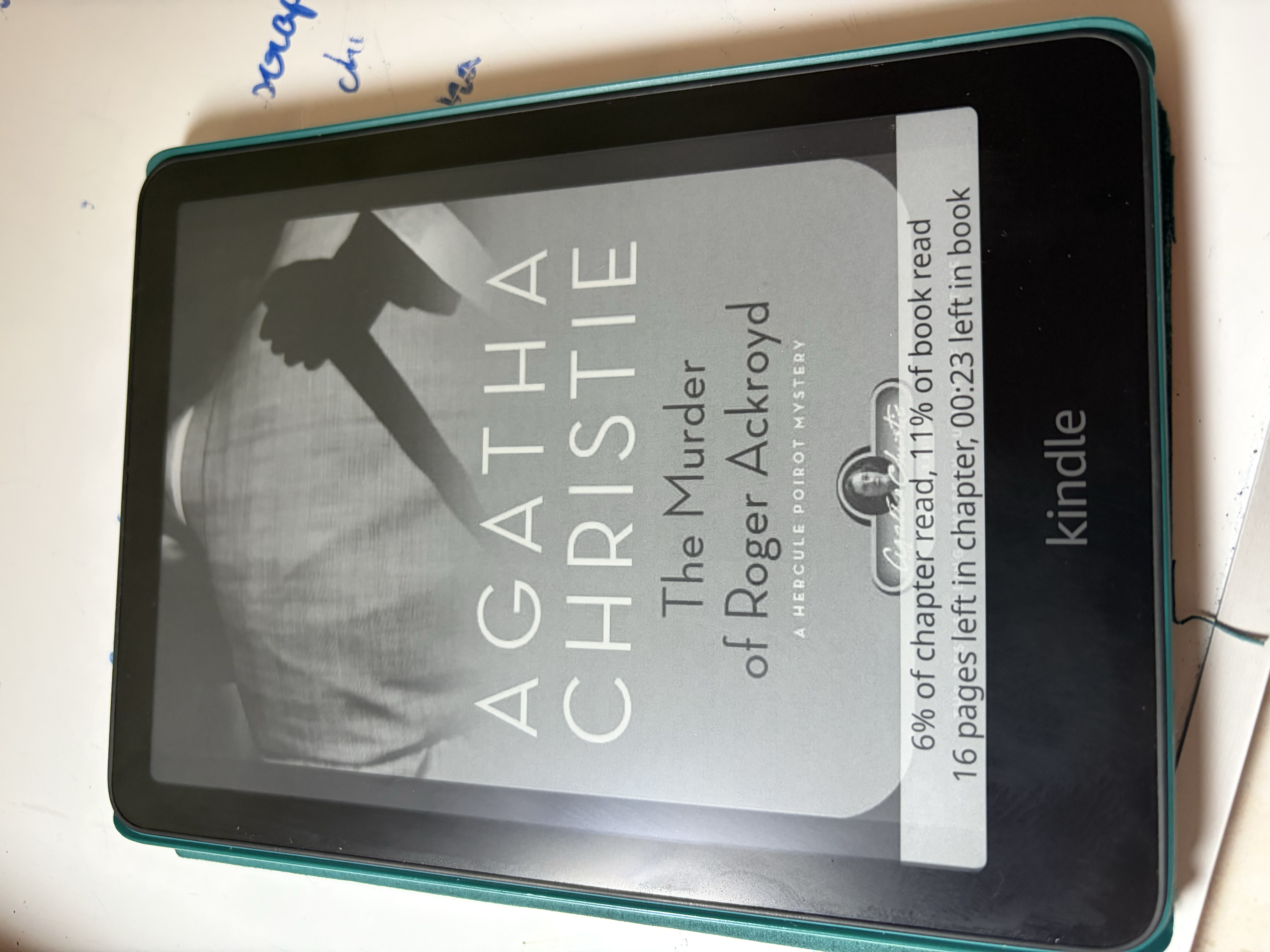
On the left is the lockscreen view, which I’ve configured to show the percentages of the current chapter and book I’m reading, as well as how many pages are left in the chapter, and how much time left to finish the book. This is really useful for quickly gauging my reading progress without having to unlock the device. With the native Kindle firmware, I would only be able to see the book cover on the lockscreen, with no extra metadata.
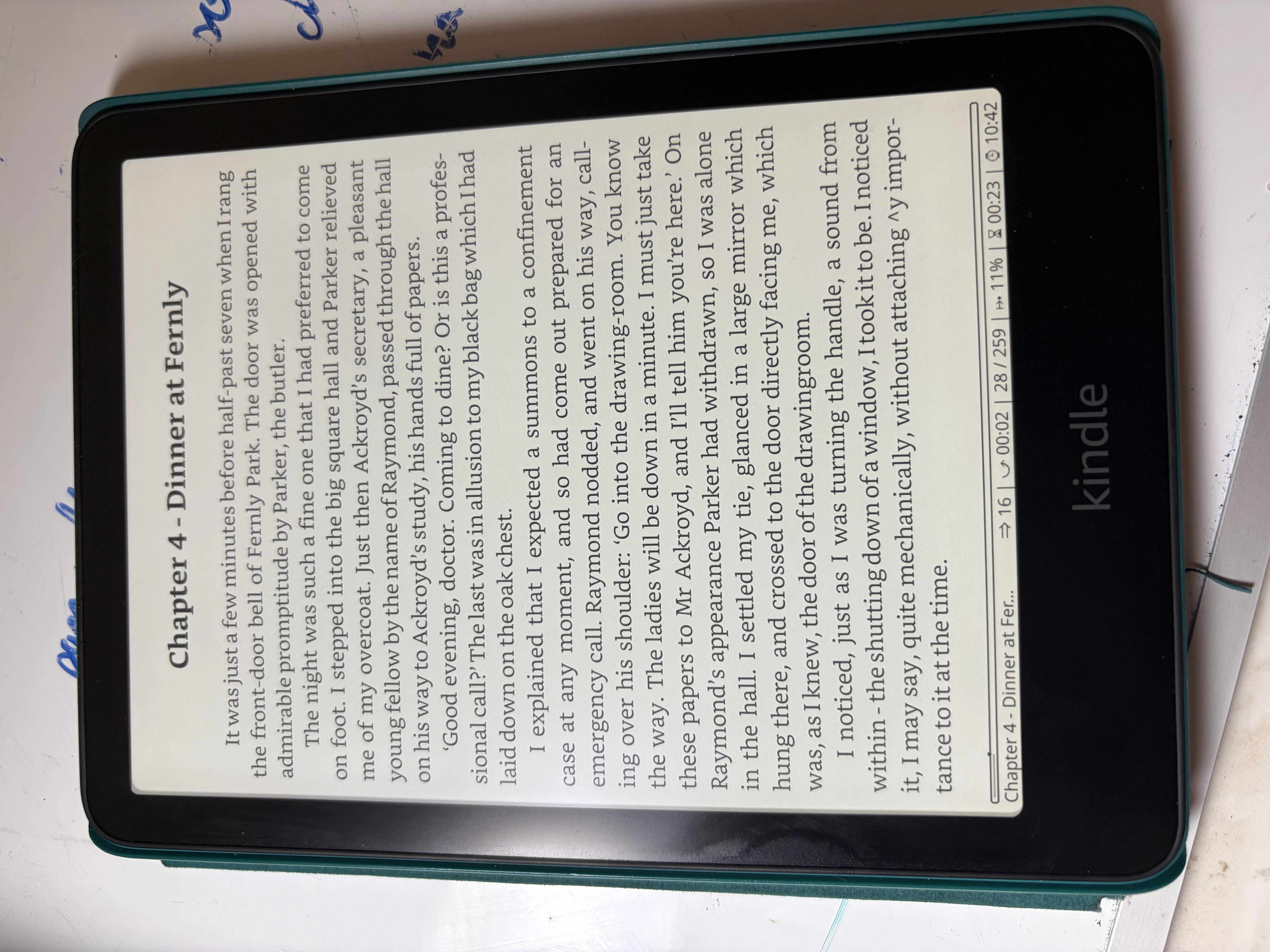
On the right, is the page view, which has smaller margins than the default Kindle reader, allowing more text to fit on the screen. This makes reading more comfortable for me, as I prefer to have more text on the screen at once. I also have customized the status bar at the bottom to show more useful data, such as the current time, how many pages are left in the chapter, chapter progress, and how many time is left to finish the chapter and book.
These features alone have made my reading experience much better, and I highly recommend jailbreaking your Kindle and trying out KOReader if you enjoy reading EPUB files. KOReader also has a reading statistics plugin, which tracks your reading habits and provides insights into your reading patterns over time.
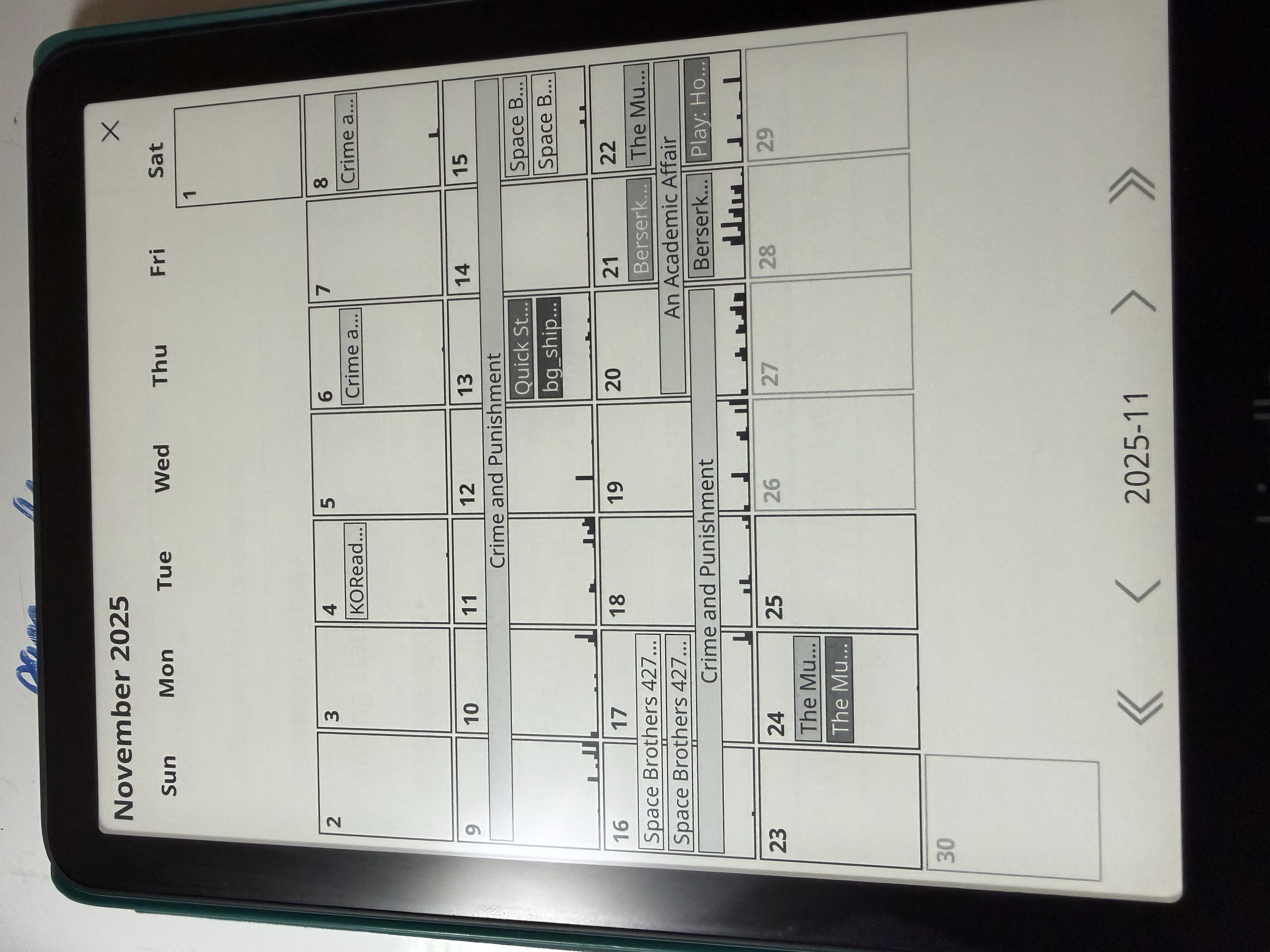
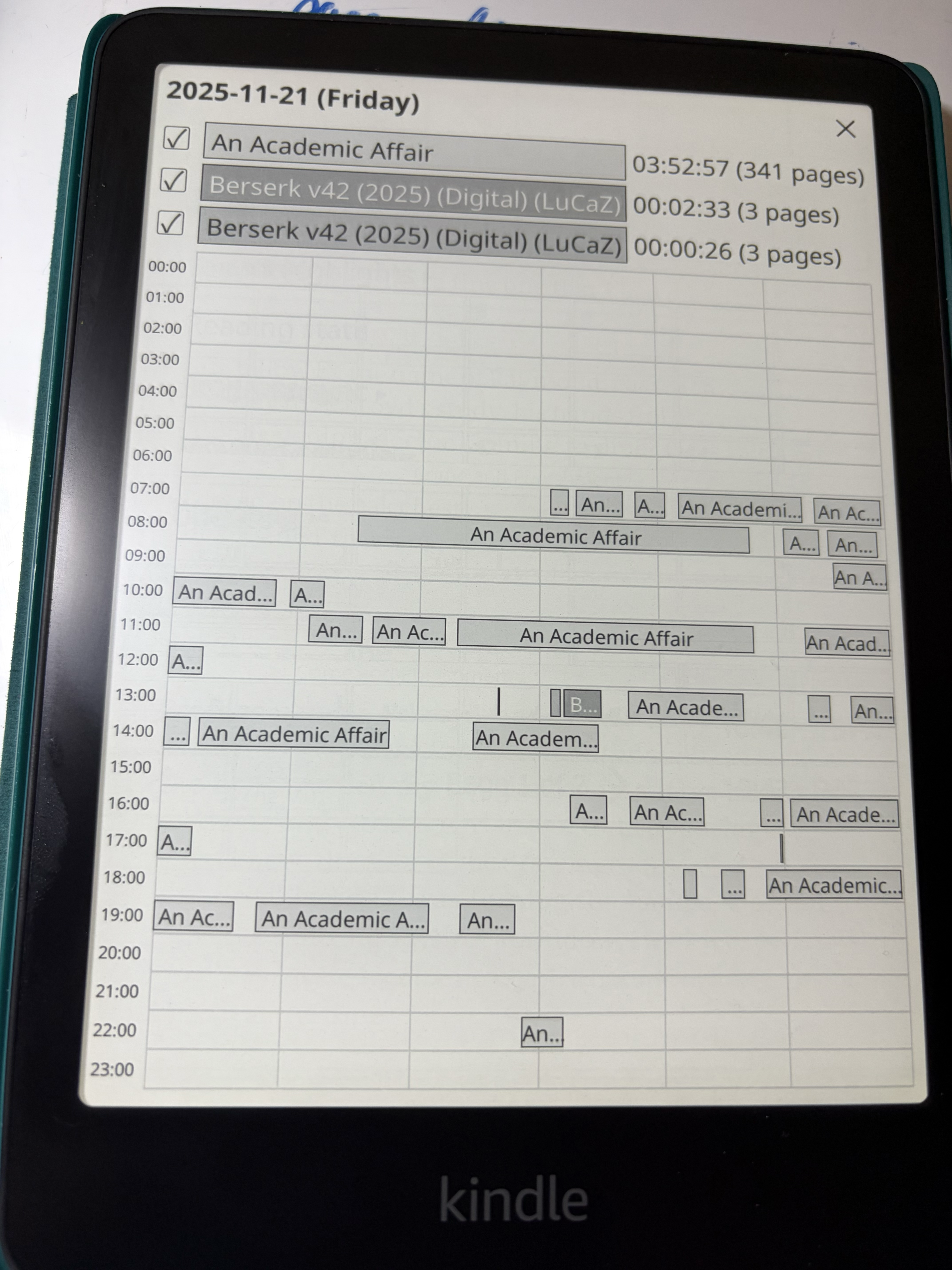
On the left is the month view, which shows a calendar with the days I’ve read books, and on the right is the day view, which shows detailed statistics for a specific day, including time spent reading, pages read, and books read. These statistics have been really motivating for me to read more, as I can see my progress over time.
Editing EPUB files
I recently started reading an Agatha Christie novel, The Murder of Roger Ackroyd, on a recommendation from a coworker. It’s been good so far, but some of the formatting was bothering me.
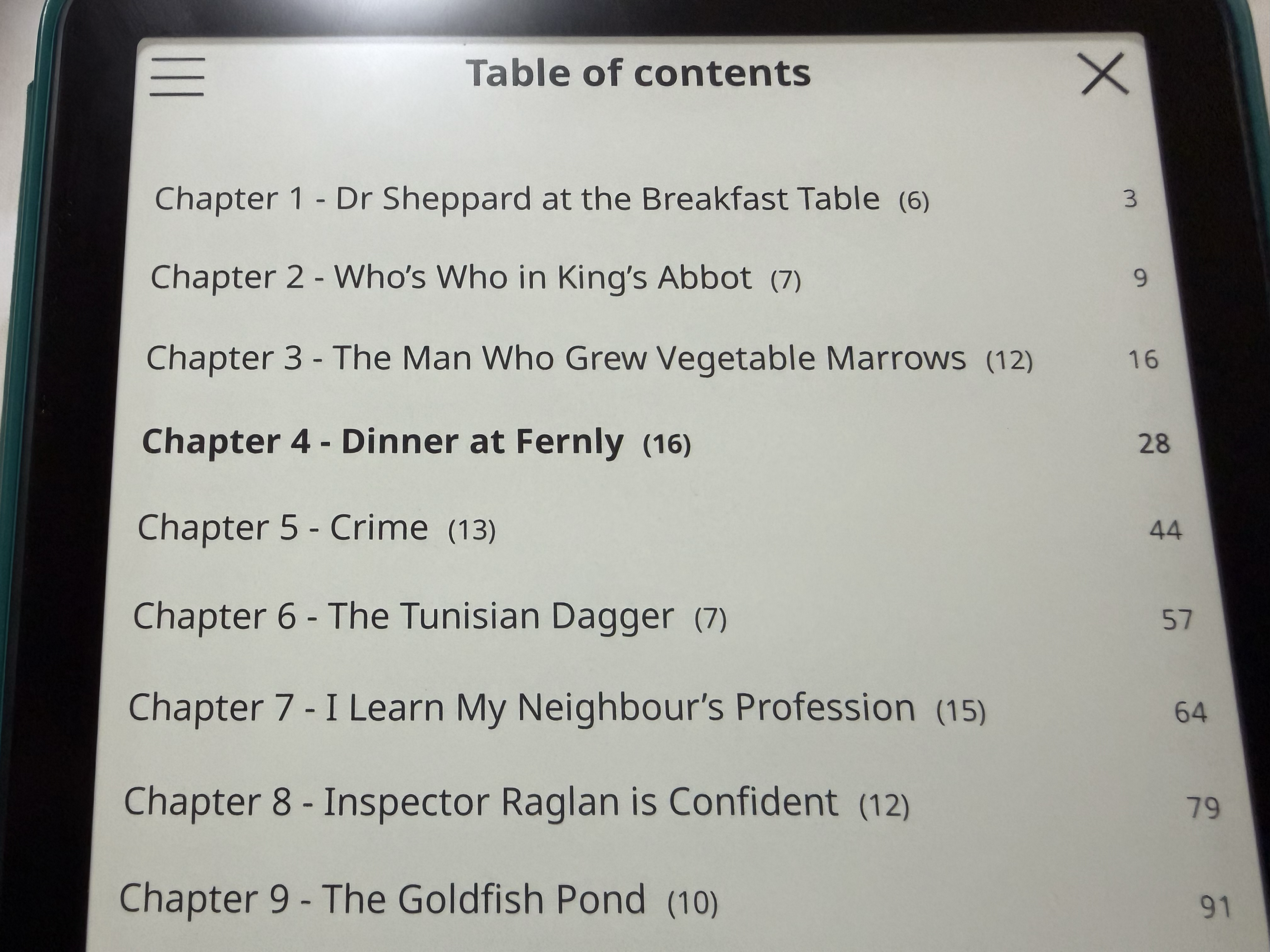
Chapter titles were just labeled as “Chapter {Number}”, even though there was a chapter name right under the header. For example, in the chapter below, the title is just “Chapter 1”, even though “Dr Sheppard at the Breakfast Table” should be the title for the chapter. 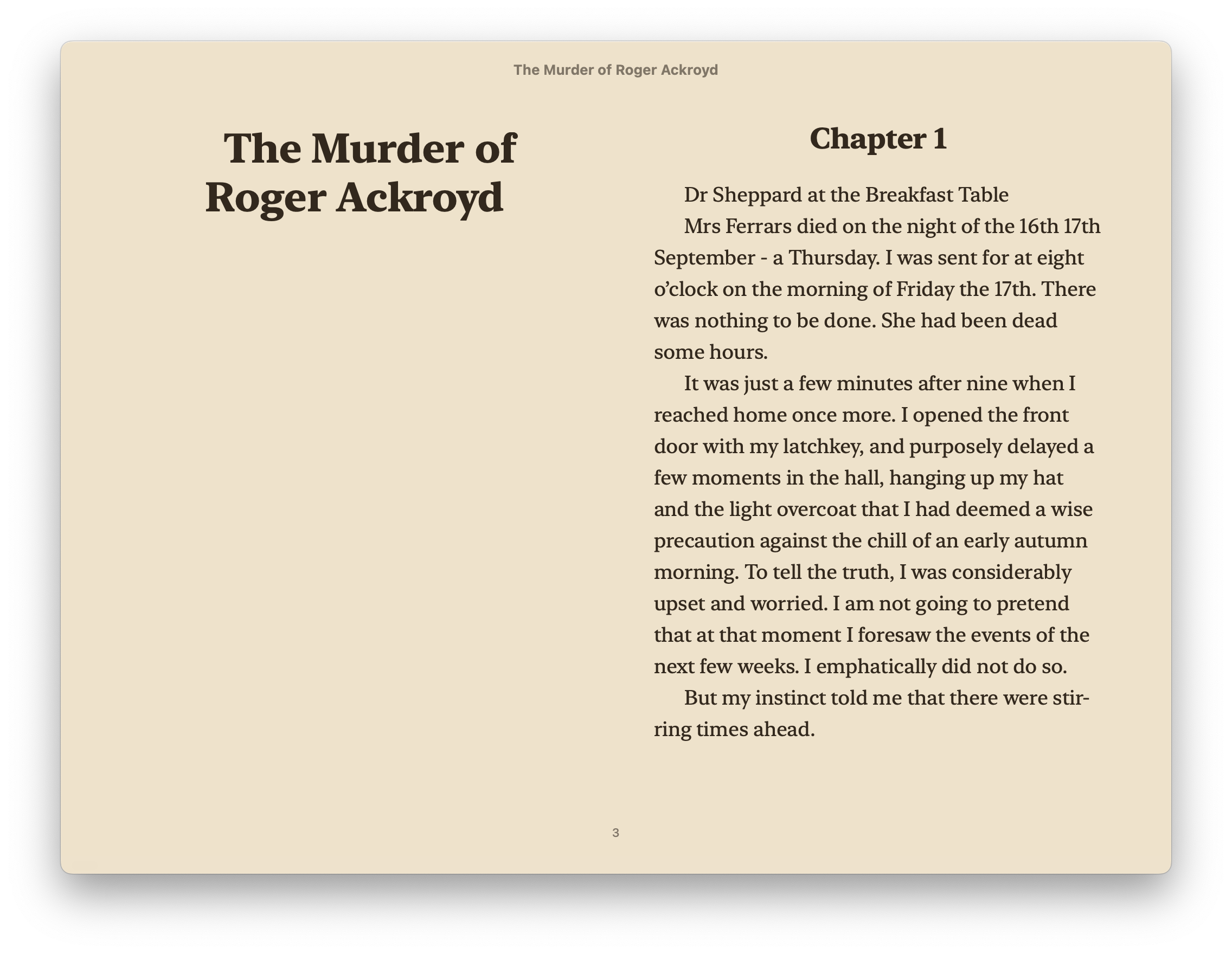
All of the chapters had this annoying format, which annoyed me, since I have my KOReader status bar set up to show chapter title as well, so I wasn’t able to see the accurate chapter title at a glance.
After realizing that on some level, an EPUB file must just be text files, I set out to modify the chapter data to add the correct title. I found out that EPUB files were just ZIP files, with each chapter being it’s own XHTML file. So I unarchived an EPUB file using the unzip command, and found the chapter files in the OEBPS directory.
After invesitigating the chapter files, I found that the chapter titles were stored in <h2> tags at the top of each chapter file, and the actual chapter names were in a <p> tag immediately after the <h2> tag. So I wrote a quick awk script to modify the chapter files to replace the <h2> tag content with the content of the <p> tag.
#!/usr/bin/awk -f

/<h2 class="calibre13">/ {
    h2_line = $0
    getline
    if ($0 ~ /<p class="calibre11">/) {
        # Extract text between tags
        gsub(/.*<p class="calibre11">/, "")
        gsub(/<\/p>.*/, "")
        chapter_title = $0
        sub(/<\/h2>/, " - " chapter_title "</h2>", h2_line)
        print h2_line
        next
    } else {
        print h2_line
        print $0
        next
    }
}
{ print }
# Run the script on each chapter file, store output in a new file
for i in (fd "split_001")
    ./add_chapter.awk $i > (printf "%s.xhtml" (echo $i | cut -d "_" -f 1))
end
Once the chapter files were modified, I re-zipped the EPUB file using the zip command, making sure to include the mimetype file first, as required by the EPUB specification. And voila, I had a modified EPUB file with correct chapter titles!
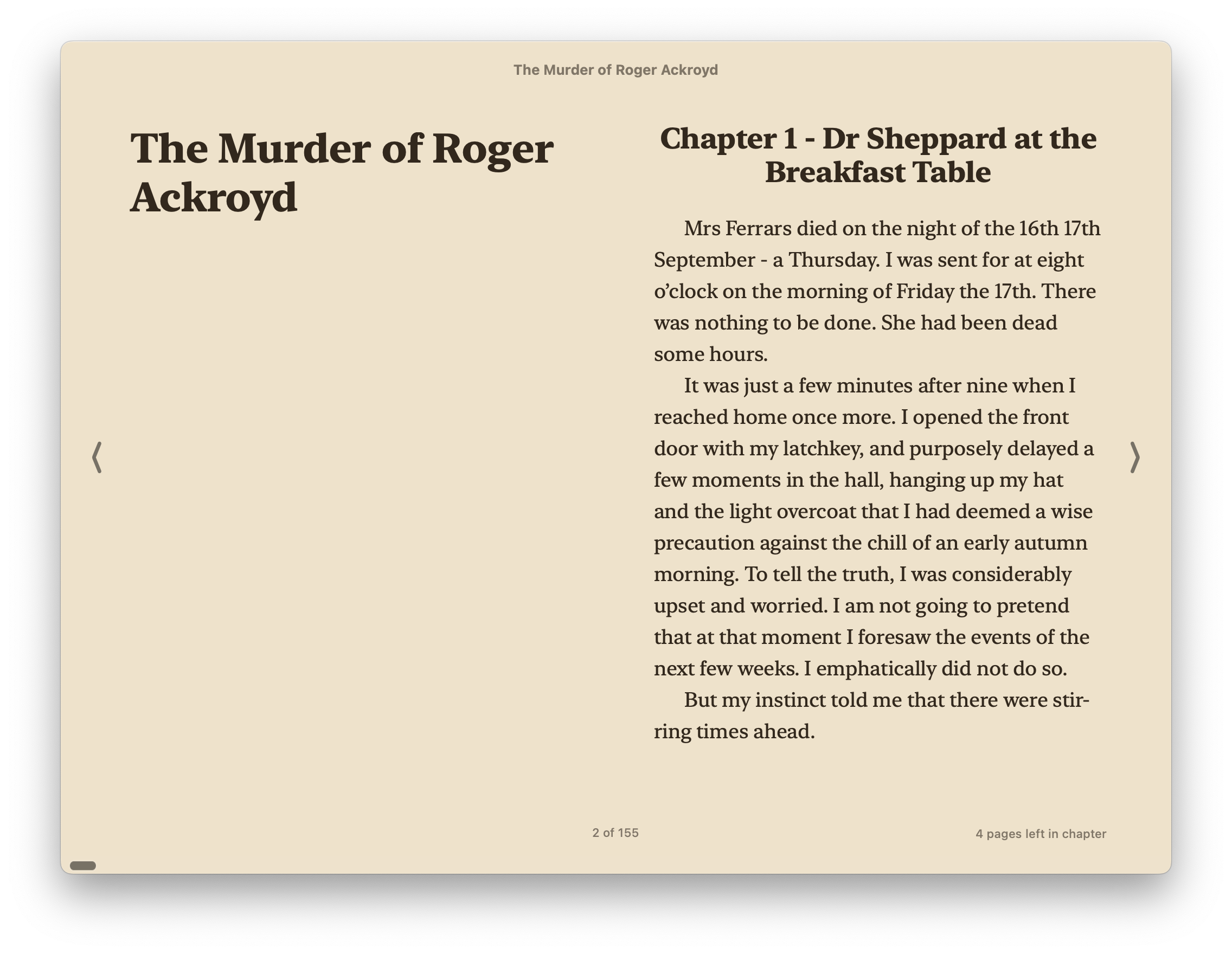
Now, when I read the book on my Kindle with KOReader, I can see the correct chapter titles in the status bar, making my reading experience much better.
Overall, editing EPUB files is a straightforward process once you understand the structure of the files. With a little bit of scripting, you can easily modify the content to suit your needs. This was a fun little project that improved my reading experience, and it shows that with a bit of tinkering, you can customize your eBook files to your liking. Scripting really always comes in handy for these kinds of tasks!

Vinesh Benny
A Software Engineer learning about different things in life and otherwise